Discover Okta Access Patterns with Teleport Identity Security
Understand access patterns within your Okta organization using Teleport Identity Security. By scanning users, groups, applications, roles, role assignments, and API tokens, Teleport provides a visual representation to help you understand and strengthen the permission model within your Okta environment. Additionally, Teleport Identity Security streams Okta system logs via Identity Activity Center for audit and investigation. This functionality enables you to answer queries such as:
- Which applications can a specific user access?
- Who has administrator roles in the Okta organization?
- Which API tokens exist and who owns them?
- What admin actions have been performed recently?
- Is my upstream IDP being comprised, and are there any suspicious login patterns?
Access Graph is a feature of the Teleport Identity Security product available to Teleport Enterprise edition customers.
To verify that Access Graph is set up correctly for your cluster, sign in to the Teleport Web UI, click the Identity Security sidebar button, and then the Browse menu item. Identities, resources, etc. should be listed.
How it works
Access Graph synchronizes Okta resources with Teleport resources, and visualizes their relationships using the graph representation detailed in the Identity Security usage page. Teleport Identity Activity Center captures Okta system logs, allowing you to investigate user activities and administrative actions within your Okta organization.
The importing process involves three components:
Polling Okta APIs
Access Graph and Identity Activity Center periodically scan the configured Okta organization and retrieve the following resources:
- Users
- Groups
- Applications
- Roles
- Role assignments
- API tokens
The default polling interval is 30 minutes (configurable). Once all resources are fetched, Teleport pushes them to the Access Graph, ensuring it remains updated with the latest information from your Okta organization.
Importing resources
Access Graph maps the relationships between imported resources, including:
- User-to-group memberships
- User-to-application assignments
- Role assignments linking users to administrator and custom roles
These relationships are rendered as a navigable graph, allowing you to trace access paths from any identity to the resources it can reach.
Streaming Okta audit logs
Identity Activity Center polls the Okta System Log API on a minute-by-minute basis, retrieving audit events.
Event types captured include:
- Authentication events (sign-ins, MFA challenges, session starts)
- Administrative actions (user lifecycle changes, role assignments, policy modifications)
- Application access events
- Security events (suspicious activity, locked accounts, password resets)
Prerequisites
- A running Teleport Enterprise cluster v16.0.0 or later.
- Identity Security enabled for your account.
- An Okta organization with one of the following:
- An API token (SSWS) with read access to users, groups, applications, roles, and system logs.
- An OAuth 2.0 application with the required scopes (see Step 1).
- For self-hosted clusters:
- Ensure that an up-to-date
license.pemis used in the Auth Service configuration. - A running Access Graph node v1.24.0 or later. Check the Identity Security page for details on how to set up Access Graph.
- The node running the Access Graph service must be reachable from the Teleport Auth Service.
- Ensure that an up-to-date
If you already have an Okta integration configured through Identity Governance, you can enable Identity Security features on the existing integration without creating a new one. See Step 2 for details.
Step 1/4. Configure Okta API credentials
Teleport supports two authentication methods for connecting to the Okta API. Either a SSWS bearer token or OAuth 2.0 client credentials can be used.
Option A: SSWS bearer token
- In the Okta Admin Console, navigate to Security > API > Tokens.
- Click Create Token and give it a descriptive name (e.g.,
Teleport Identity Security). - Copy the generated token value. You will need it in Step 2.
The token inherits the permissions of the administrator who creates it. Ensure the administrator account has read access to users, groups, applications, roles, and system logs. Use a service account with the Read-Only Administrator role or a custom admin role with equivalent read permissions.
Option B: OAuth 2.0 client credentials
- In the Okta Admin Console, navigate to Applications > Applications.
- Click Create App Integration and select API Services.
- Assign the application the required OAuth scopes:
okta.users.readokta.groups.readokta.apps.readokta.roles.readokta.logs.read
- Note the Client ID. You will need it in Step 2.
Step 2/4. Set up the Okta integration
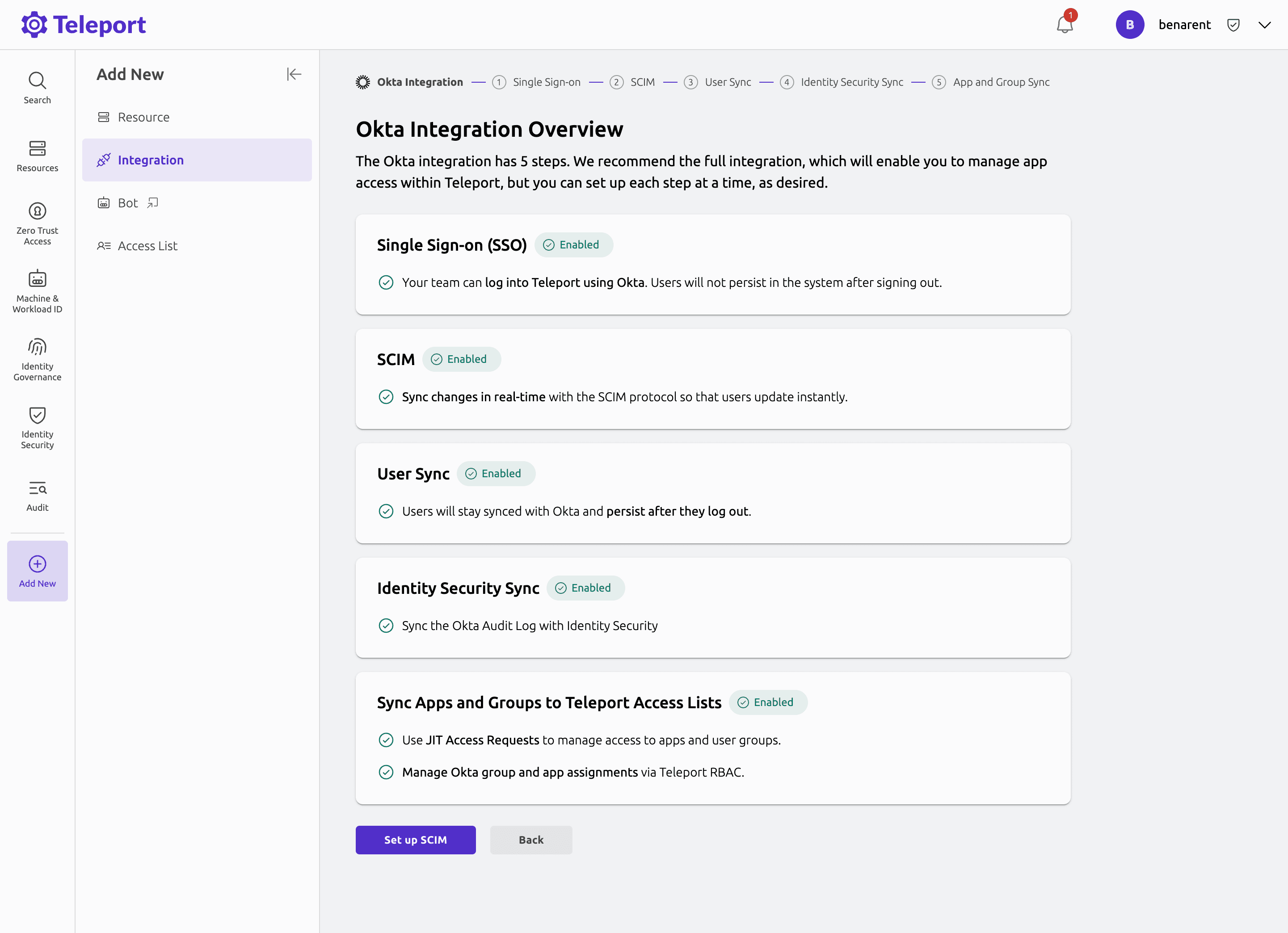
In this step we'll set up the integration in Teleport. Teleport has a comprehensive Okta integration and as part of this onboarding wizard, teams can choose to enable Identity Security features.
New integration
To create a new Okta integration with Identity Security:
- In the Teleport Web UI, click the Identity Security sidebar button, then click Integrations.
- Click Setup new integration and select Okta.
- Follow the setup wizard:
- Enter your Okta organization URL (e.g.,
https://your-org.okta.com). - Provide the API credentials configured in Step 1 (SSWS token or OAuth Client ID).
- Enable the Identity Security features you want: resource scanning and/or system log export.
- Enter your Okta organization URL (e.g.,
- Once credentials are validated, the integration begins syncing resources.
Existing integration
If you already have an Okta integration configured through Identity Governance:
- Navigate to the Okta integration status page (Identity Governance > Integrations > click the Okta row).
- Enable the Identity Security options (resource scanning and system log export) from the status page.
For full details on SSO, SCIM, user sync, and application/group sync setup, see the Identity Governance Okta integration guide.
Step 3/4. View Okta resources in Access Graph
After the initial sync completes, Okta resources appear as nodes in the Access Graph. You can explore them by navigating to Identity Security > Browse in the Teleport Web UI.
Browsing the graph
Use the search bar at the top of the graph to find a specific Okta group, user, or application by name. Click on any node to open a side panel showing its details:
- Okta Group nodes show the group's members, owners, and audit schedule. Select the Permissions & Eligibility tab to see which Teleport roles the group grants.
- Okta User nodes show the user's group memberships and application assignments. Click View Access to trace the full access path from the user through groups and roles to the resources they can reach.
- Browse Connections expands the graph around a selected node to reveal related identities and resources.
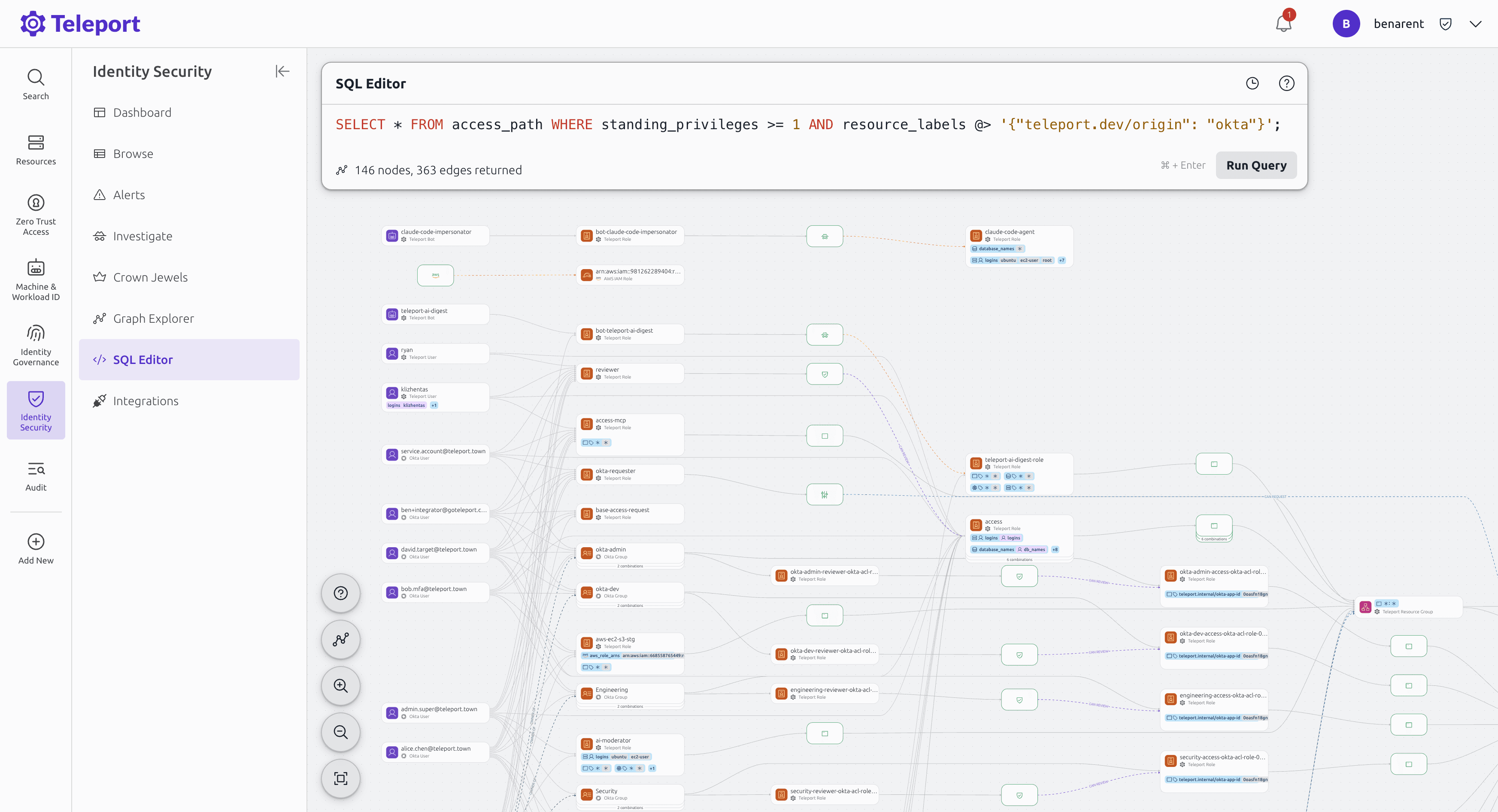
SQL queries
You can run SQL queries in the Graph Explorer query bar to fetch specific information.
Okta resources are tagged with teleport.dev/origin: okta, which you can use to filter results.
In the following queries, replace the placeholder values with your own:
| Placeholder | Description |
|---|---|
| your-org | Your Okta organization subdomain (e.g., acme for acme.okta.com) |
| user | The Okta username to look up |
| app-name | The name of the Okta application |
| group-name | The name of the Okta group |
Show all Okta resources
SELECT * FROM nodes WHERE labels @> '{"teleport.dev/origin": "okta"}';
Show all Okta resources for a specific org
SELECT * FROM nodes WHERE labels @> '{"okta/org": "https://your-org.okta.com"}';
Fetch all access paths for an Okta user
SELECT * FROM access_path WHERE identity = 'user' AND kind = 'ALLOWED';
Fetch all users who can access an Okta application
SELECT * FROM access_path WHERE resource = 'app-name' AND resource_labels @> '{"teleport.dev/origin": "okta"}';
Fetch all members of an Okta group
SELECT * FROM access_path WHERE resource = 'group-name' AND resource_labels @> '{"teleport.dev/origin": "okta"}';
Find Okta users with standing privileges
SELECT * FROM access_path WHERE standing_privileges >= 1 AND resource_labels @> '{"teleport.dev/origin": "okta"}';
Step 4/4. View Okta activity in Identity Activity Center
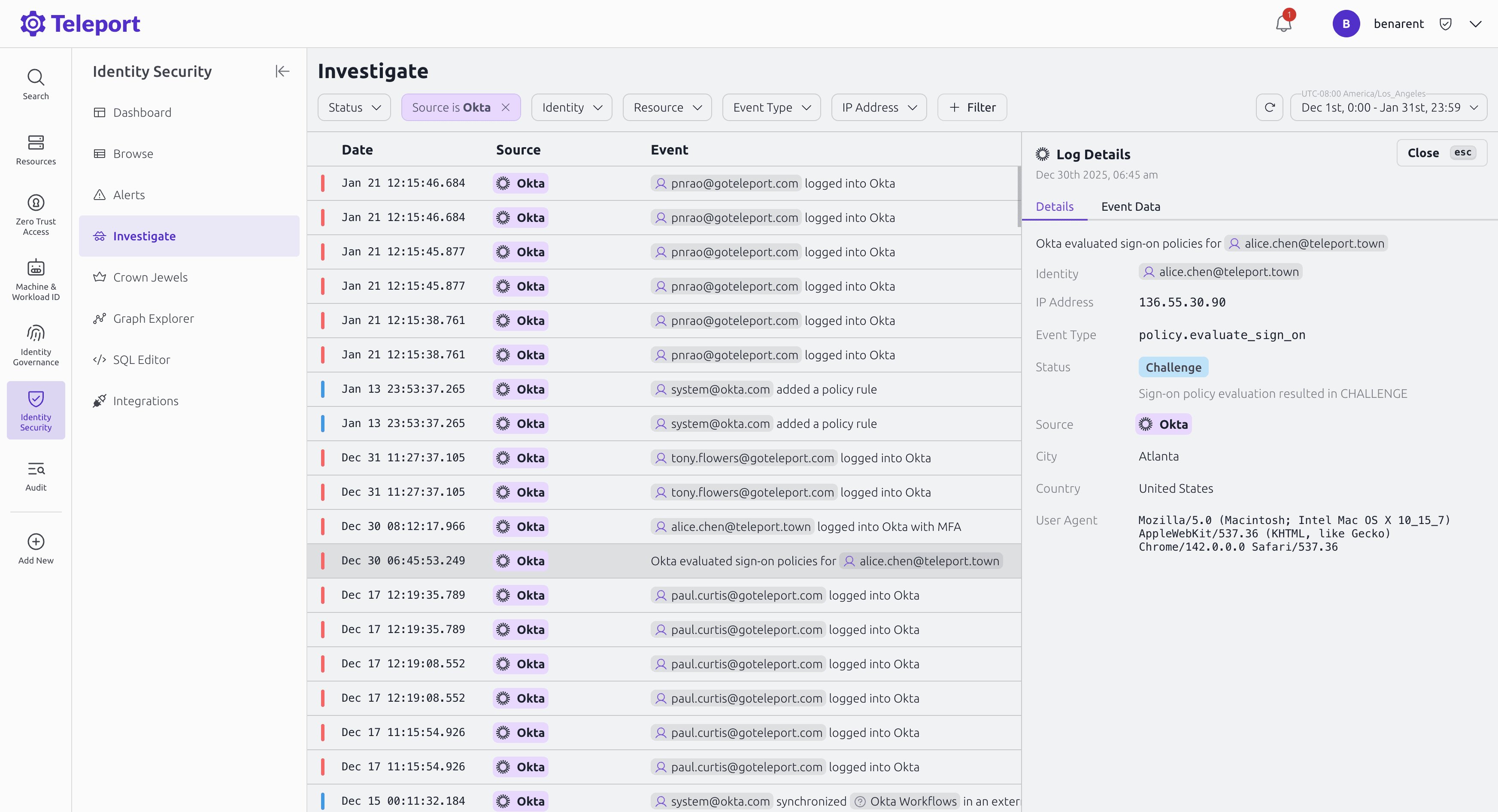
After enabling system log export, Okta audit events appear in the Identity Activity Center. Navigate to Identity Security > Activity Center in the Teleport Web UI to search and investigate Okta system log events alongside activity from other connected platforms.
The Identity Activity Center normalizes Okta system logs alongside audit data from AWS, GitHub, and Teleport, giving you a single view of identity activity across your organization. Use the Investigate view to explore related events and trace activity across platforms for a specific identity.
Alerts
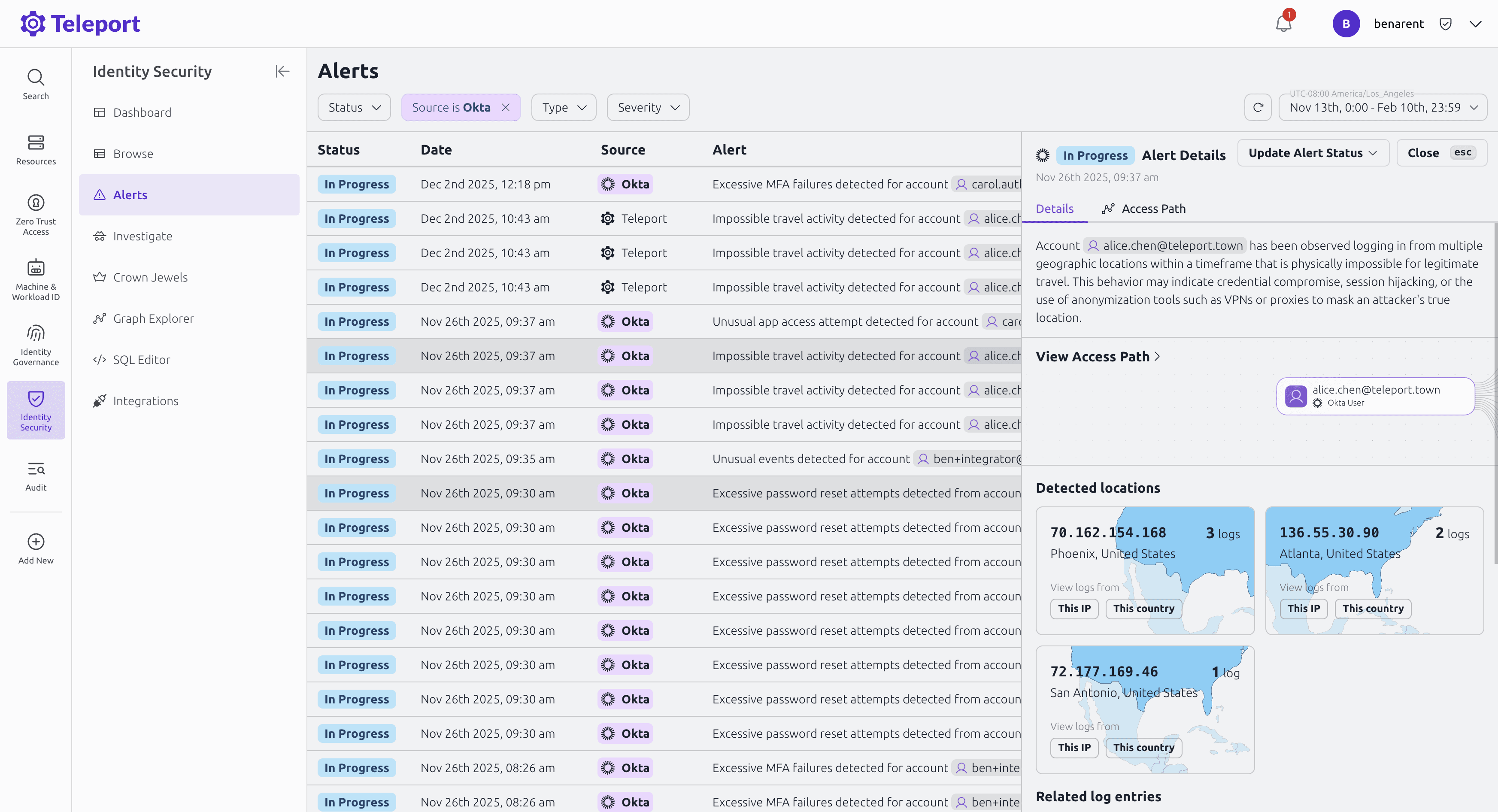
Teleport Identity Security includes pre-built security detections that automatically create alerts for suspicious Okta activity. These detections monitor Okta system log events and trigger alerts without any additional configuration.
Troubleshooting
After setting up the Okta integration, you can monitor the sync status on the Identity Security Integrations page. If the import fails, an error message will help identify the issue.
Authentication errors
If you see Unauthorized or 403 Forbidden errors:
- SSWS token: Verify the token has not expired and the creating administrator has sufficient permissions. Create a new token if needed and update the integration settings.
- OAuth app: Verify the Client ID is correct and the required scopes are assigned to the application.
System log export issues
If system log events are not appearing in the Identity Activity Center:
- Ensure the system log export toggle is enabled on the integration.
- Verify the API credentials have read access to system logs (
okta.logs.readscope or equivalent admin permissions). - Check that your Okta organization has the System Log API enabled.
Connectivity issues
Ensure the Teleport cluster can reach your Okta organization URL over HTTPS. For self-hosted
clusters, verify that network policies and firewalls allow outbound connections to *.okta.com
or your custom Okta domain.
General troubleshooting
Inspect the error log on the Identity Security Integrations page for detailed error messages. If issues persist, check the Teleport Auth Service logs for additional context.