 Get a Demo
How to Access Proxmox Virtual Environment with Teleport
An overview guide for how to protect and connect to Proxmox VE edition using Teleport.

This guide outlines how to set up Teleport with Proxmox Virtual Environment (PVE), a platform designed for provisioning hyper-converged infrastructure. PVE allows deployment and management of virtual machines and containers. By accessing PVE via Teleport, you can easily and securely access and share the Proxmox Dashboard remotely.
| Integration Status | Support | Known Issues |
| Experimental | Community | None |
Overview
In this guide, we will cover:
- Using Teleport Access to view the Proxmox GUI
- Adding Teleport Server Access for host-level debugging

Setup
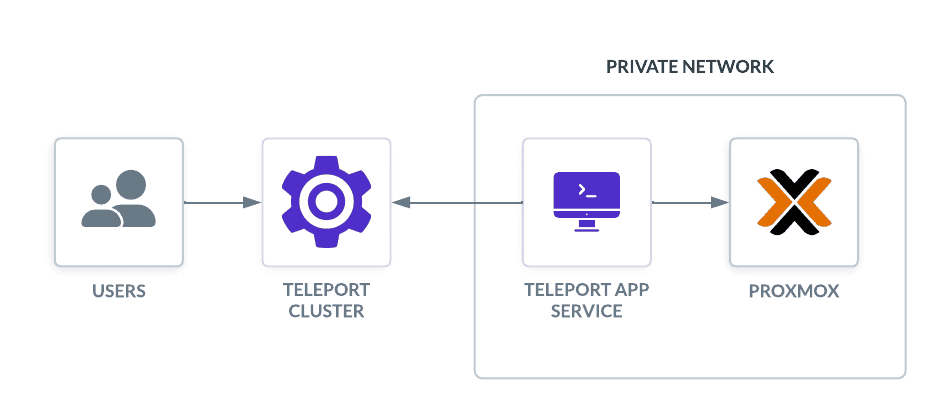
To connect Proxmox to Teleport, you’ll need a Teleport Cluster. This cluster can be one managed by Teleport Cloud, or a self-hosted community-edition cluster. Sign up for a 14 day trial, or run a self-hosted community-edition cluster.
Once deployed you’ll need to set up and install the Teleport App Service. In our case, we’ll also make this a SSH service for easier debugging.
Generate a Token
To setup the app service, please follow the Web Application Access Guide. When generating a token, use tctl tokens add --type=app,node this will let you access both the Proxmox server and the Proxmox UI.
tctl tokens add --type=app,node Configure Teleport
Start the Teleport App & Node service with a config similar to and save it to `/etc/teleport.yaml`
# Save this file to /etc/teleport.yaml
version: v3
teleport:
  nodename: pve
  proxy_server: example.teleport.sh:443
  data_dir: /var/lib/teleport
  join_params:
    token_name: "REPLACE_TOKEN"
    method: token
  log:
    output: stderr
    severity: INFO
    format:
      output: text
  ca_pin: ""
  diag_addr: ""
auth_service:
  enabled: "no"
ssh_service:
  enabled: "yes"
app_service:
  enabled: "yes"
  apps:
    - name: "proxmox"
      uri: "https://localhost:8006"
      insecure_skip_verify: true
proxy_service:
  enabled: "no"
Replace the following values:
- proxy_server: The URL of your Teleport cluster (e.g. example.teleport.sh or example.com). Note: You will need a wildcard certificate as Proxmox will be accessed at proxmox.example.com.
- token_name: The token generated in the previous step.
Save this file to /etc/teleport.yaml and start Teleport:
sudo teleport start --config=/etc/teleport.yamlOnce started, you should see the Proxmox app and pve node in the Teleport resources view:

You can now access both the proxmox UI for creating VMs and the underlying OS for creating VMs with the CLI. If you have any questions please post in our GitHub Discussion or Community Slack.