Using the Web UI
The Teleport Web UI is a web-based visual interface from which you can access resources, view active sessions and recordings, create and review Access Requests, manage users and roles, and more.
This page serves a reference on Web UI features and their usage.
Joining an active session
The Teleport Web UI allows you to list and join active SSH sessions using a web-based terminal.
You can view the active SSH sessions that you are allowed to list by clicking Active Sessions in the navigation sidebar.
From the active sessions list, click Join and select a participant mode to join the session:
- As an Observer with read-only access to the session. You can view output but cannot control the session in any way nor send any input.
- As a Peer to collaborate in the session. You can view output and send input.
- As a Moderator with permission to watch, pause, or terminate the session. You can view output and forcefully terminate or pause the session at any time, but can't send input. Moderated sessions are an enterprise-only feature.
You must have the join_sessions allow policy in a role you've been assigned to join sessions in any participant mode.
For information about how to configure the join_sessions allow policy and participant modes for a role, see
Configure an allow policy.
Idle timeout
After you log in, the Teleport Web UI checks every 30 seconds if your session is inactive. If so, it logs you out. A session is considered inactive if more than 10 minutes have passed since you last interacted with any Web UI browser tab, either through keyboard input or mouse movement and clicks.
To change the default idle timeout of 10 minutes, ask your cluster admin to adjust the
web_idle_timeout setting in the Auth Service configuration.
Use tctl to edit the cluster_networking_config value:
tctl edit cluster_networking_config
Change the value of spec.web_idle_timeout:
kind: cluster_networking_config
metadata:
  ...
spec:
  ...
  web_idle_timeout: 10m0s
  ...
version: v2
After you save and exit the editor, tctl will update the resource:
cluster networking configuration has been updated
Starting a database session
Starting from version 17.1, users can establish database sessions using the
Teleport Web UI. Support for database sessions in the Web UI was later expanded to include CockroachDB in 18.1.5 and MySQL/MariaDB databases in 18.2.0.
To start a new session, locate your database in the resources list and click "Connect".
For supported databases, the dialog will present the option to start the session in your browser.
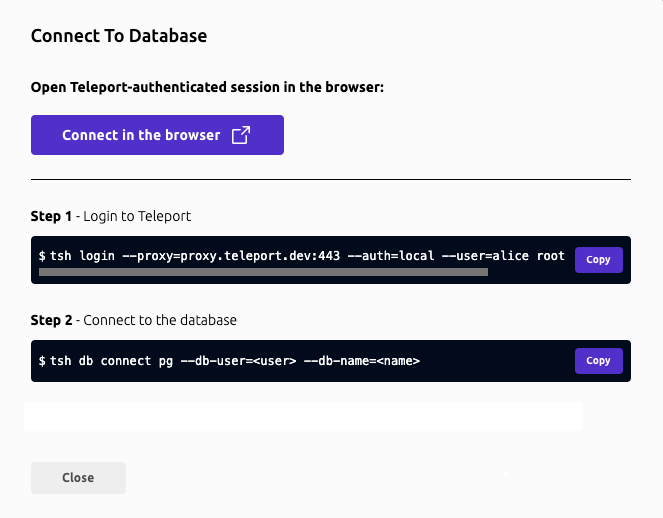
After clicking on the "Connect in the browser" button, a new tab will open with a form. Teleport will pre-fill this form based on your permissions, but you can adjust the options as needed.
If your user has wildcard permissions (*), you can type custom values into the form fields. This allows flexibility in selecting specific databases or credentials.
Once you've filled in the session details, click the "Connect" button. Your session will start, and a terminal interface will appear in the browser.
The browser-based terminal allows you to execute queries and interact with your database. Follow the on-screen instructions to see available commands and limitations.
While the terminal interface provided in the Teleport Web UI is designed to
resemble popular database CLIs such as psql, it is a custom implementation
with some differences and limitations:
- Feature Set: Not all features available in popular CLI tools are implemented.
For instance, scripting capabilities, query cancellation, or informational
commands like
\dor\dtfrompsqlare currently not supported. - Error Handling: Error messages and diagnostics might differ from what users are accustomed to.
These distinctions are designed to maintain a lightweight and secure interface
directly in your browser. For more complex operations, you may prefer
accessing your database from your terminal using tsh and your preferred
tool.
Future updates may expand functionality or address feedback based on user needs and supported databases.
Instance inventory
The Instance Inventory page lists all connected instances and bot instances in your cluster, allowing you to see details about them and identify instances running outdated versions of Teleport.
To access the page, navigate to Zero Trust Access > Instance Inventory. Your user must have the instance.list and
instance.read permissions to view instances, and the bot_instance.list and bot_instance.read permissions to view bot instances.
Changes to the inventory, such as newly connected or updated instances, may take up to 20 minutes to appear.
Table columns
The table contains the following columns:
| Column | Description |
|---|---|
| Host/Bot Name | The hostname for an instance (a Teleport process running one or more services) or the bot name for a bot instance (a running Machine ID bot). The instance ID below can be clicked to be copied. |
| Version | The version of Teleport running on the instance. |
| Type | Whether this is an instance or a bot instance. |
| Services | The services running on the instance. For a bot instance, this information will be found in the Bot Instances dashboard. |
| Upgrader | The external upgrader configured for the instance, if any. |
| Upgrader Group | The updater group the instance belongs to, if any. |
Searching and filtering
Filter controls can be used to filter by various criteria like type, services, upgrader, and version. To filter by version, you can either select one of the preset options or use your own custom condition.
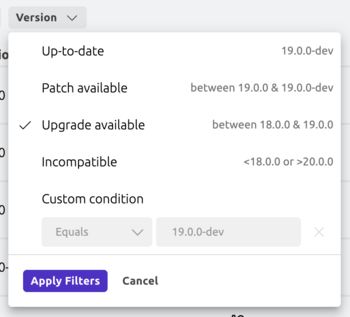
The basic search can match for hostname, bot name, and instance ID. For more fine-tuned filtering, you can toggle Advanced mode and enter a predicate query.
| Example query | Description |
|---|---|
version == "18.2.0" | Running Teleport version 18.2.0 |
older_than(version, "18.0.0") | Running a Teleport version older than 18.0.0 |
newer_than(version, "17.0.0") | Running a Teleport version newer than 17.0.0 |
between(version, "17.0.0", "18.0.0") | Running a Teleport version 17.0.0 or newer, and older than 18.0.0 |
spec.updater_group == "prod" | In the "prod" updater group |
spec.external_upgrader == "kube-updater" | Using the Kubernetes upgrader |
You can combine queries with && (and) or || (or), for example: older_than(version, "18.0.0") && spec.updater_group == "prod".